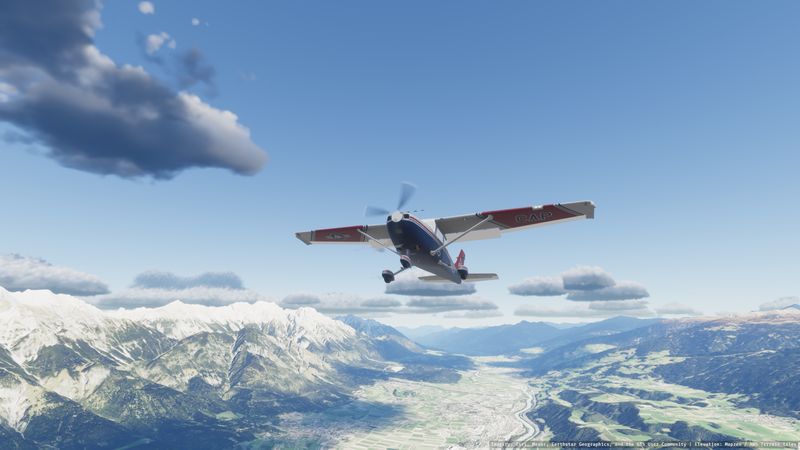
Cessna 182 Skylane
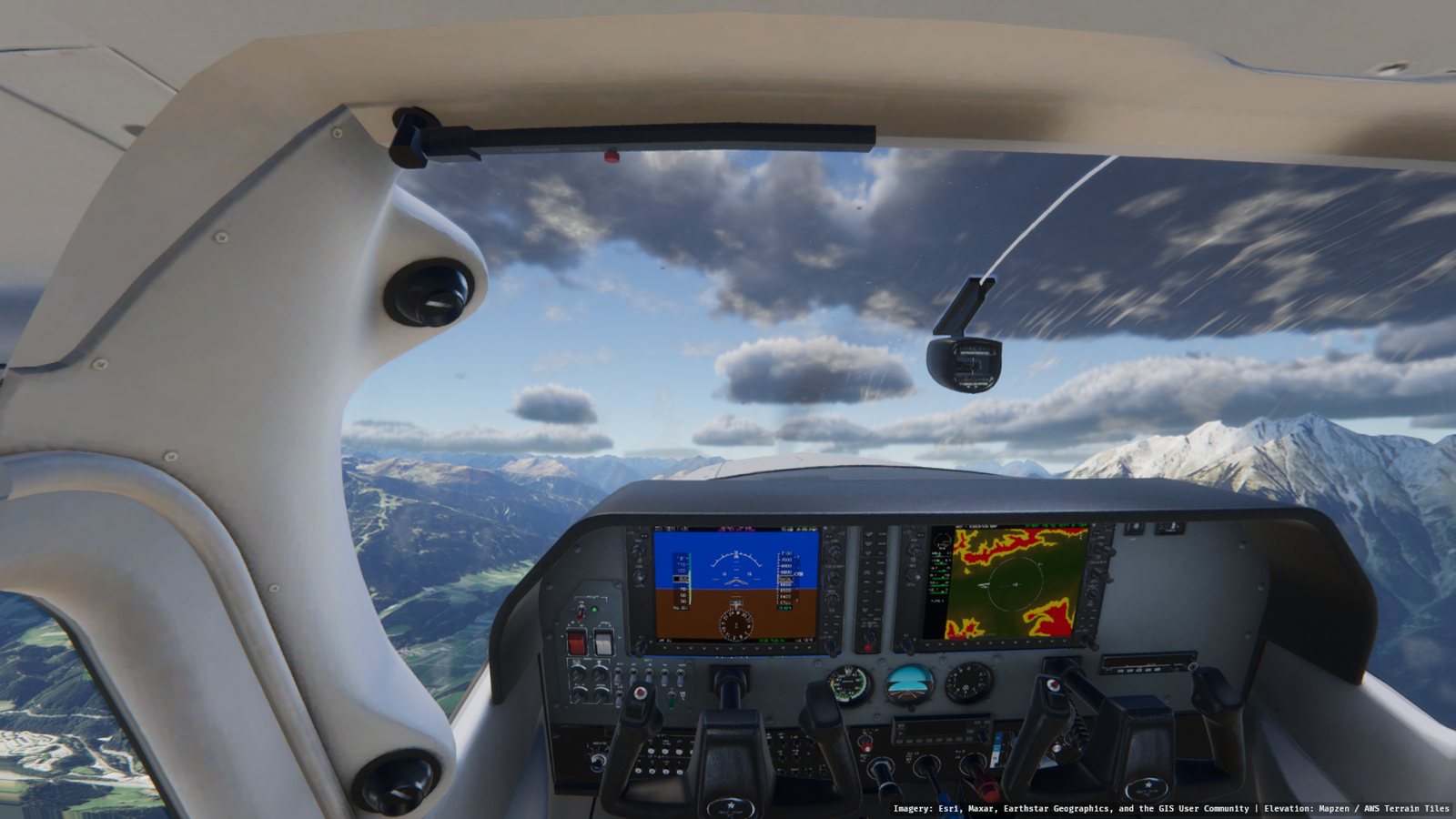
Stable and forgiving, with a working G1000 glass cockpit. The flight model is checked against the pilot's handbook for stall speeds, climb, cruise and take-off run.
gflight
A small flight simulator on a streamed globe: real terrain and satellite imagery, volumetric clouds, a Cessna 182 and a Spitfire. Free for Windows and Linux.
Stable and forgiving, with a working G1000 glass cockpit. The flight model is checked against the pilot's handbook for stall speeds, climb, cruise and take-off run.
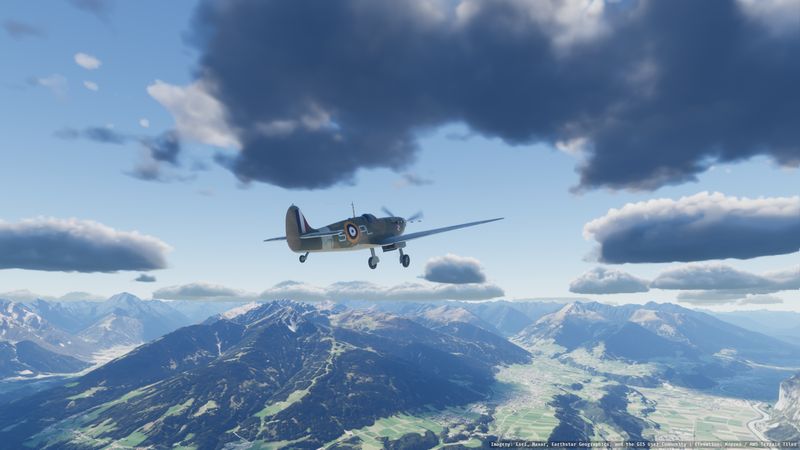
Light, sensitive elevator; ailerons that stiffen at speed; it swings on take-off and sits tail-down on the ground. Tuned to NACA's 1942 flight tests: it stalls at about 84 mph and reaches 349 mph at 17,000 ft.
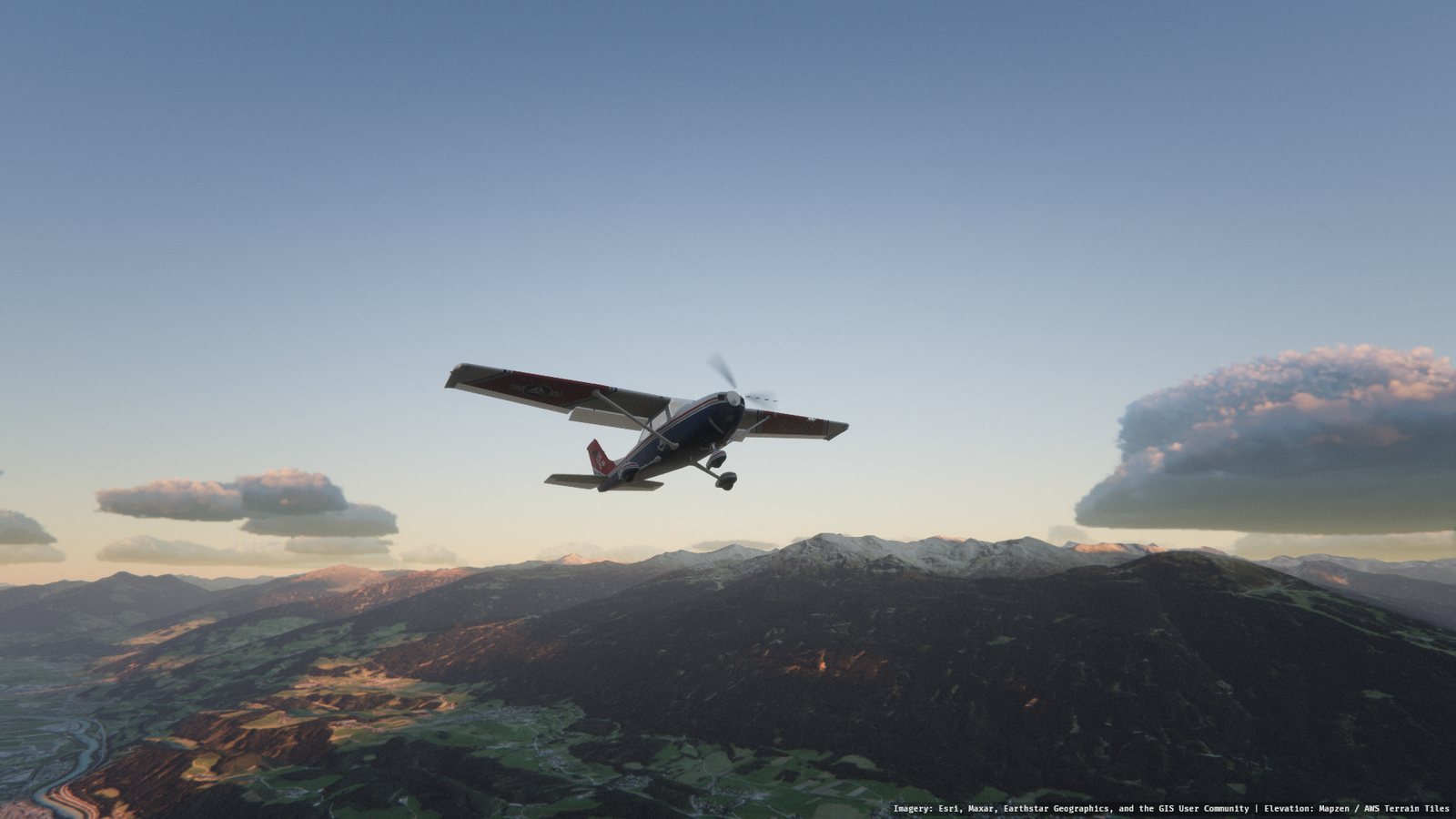
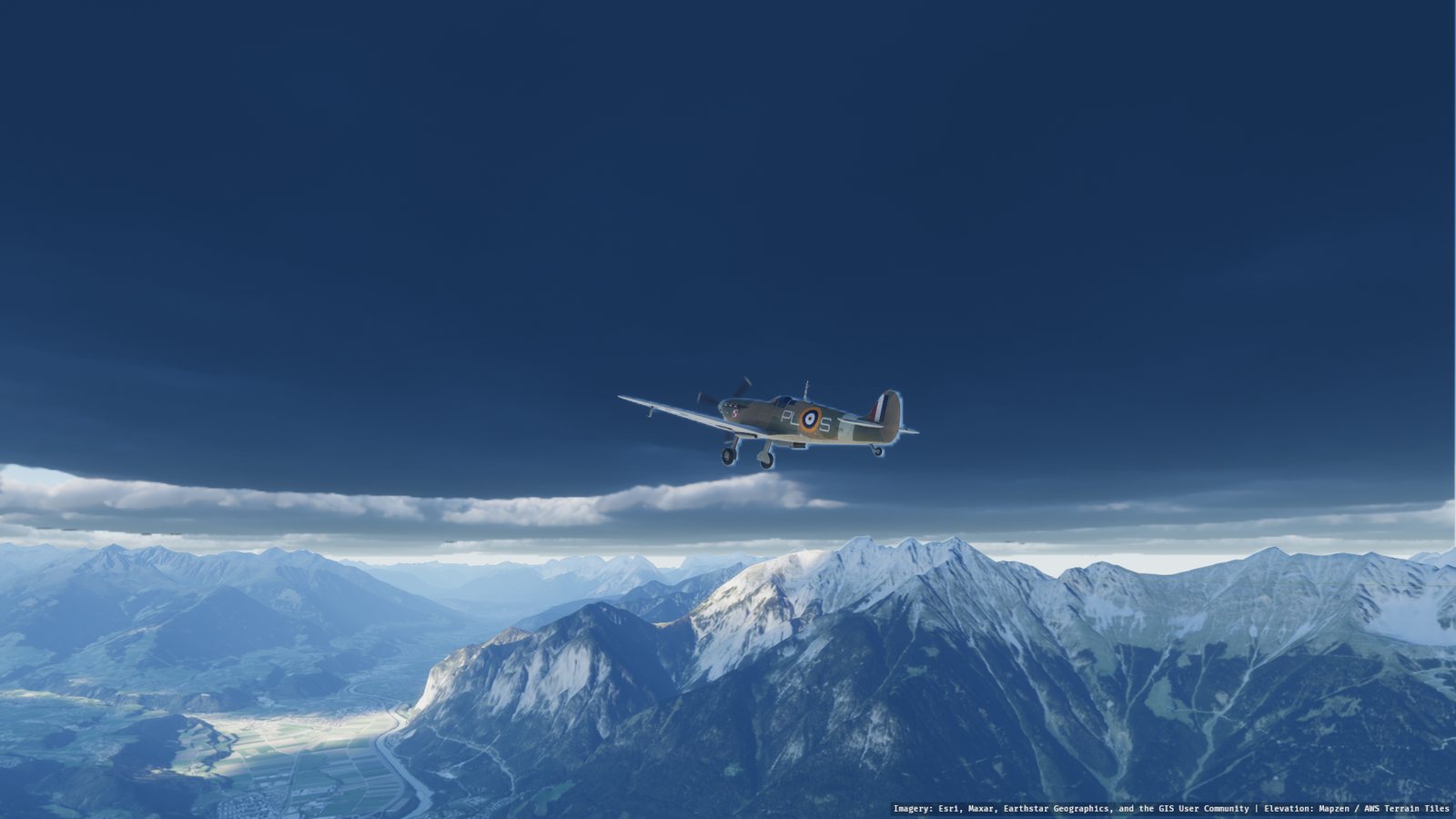
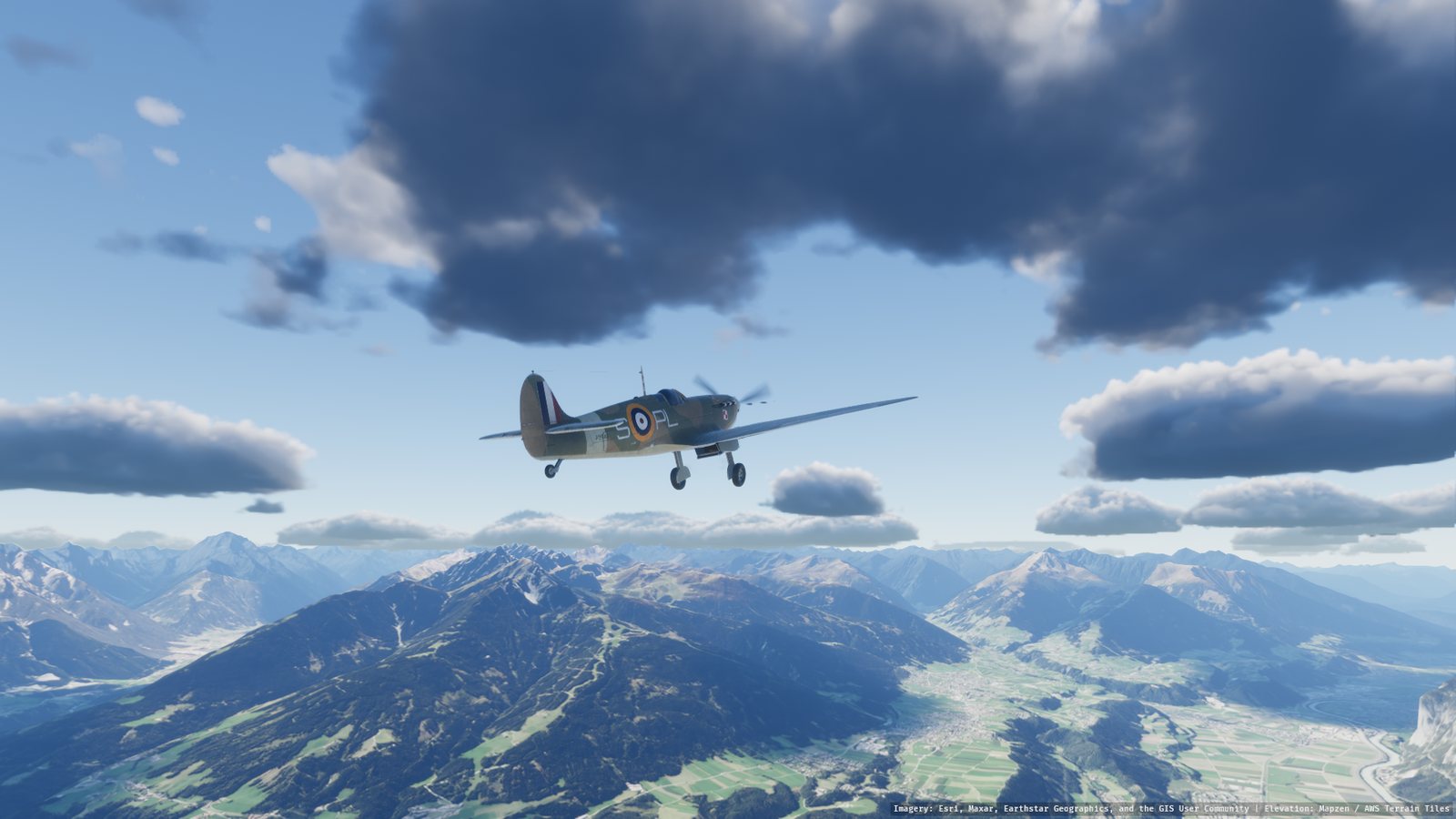
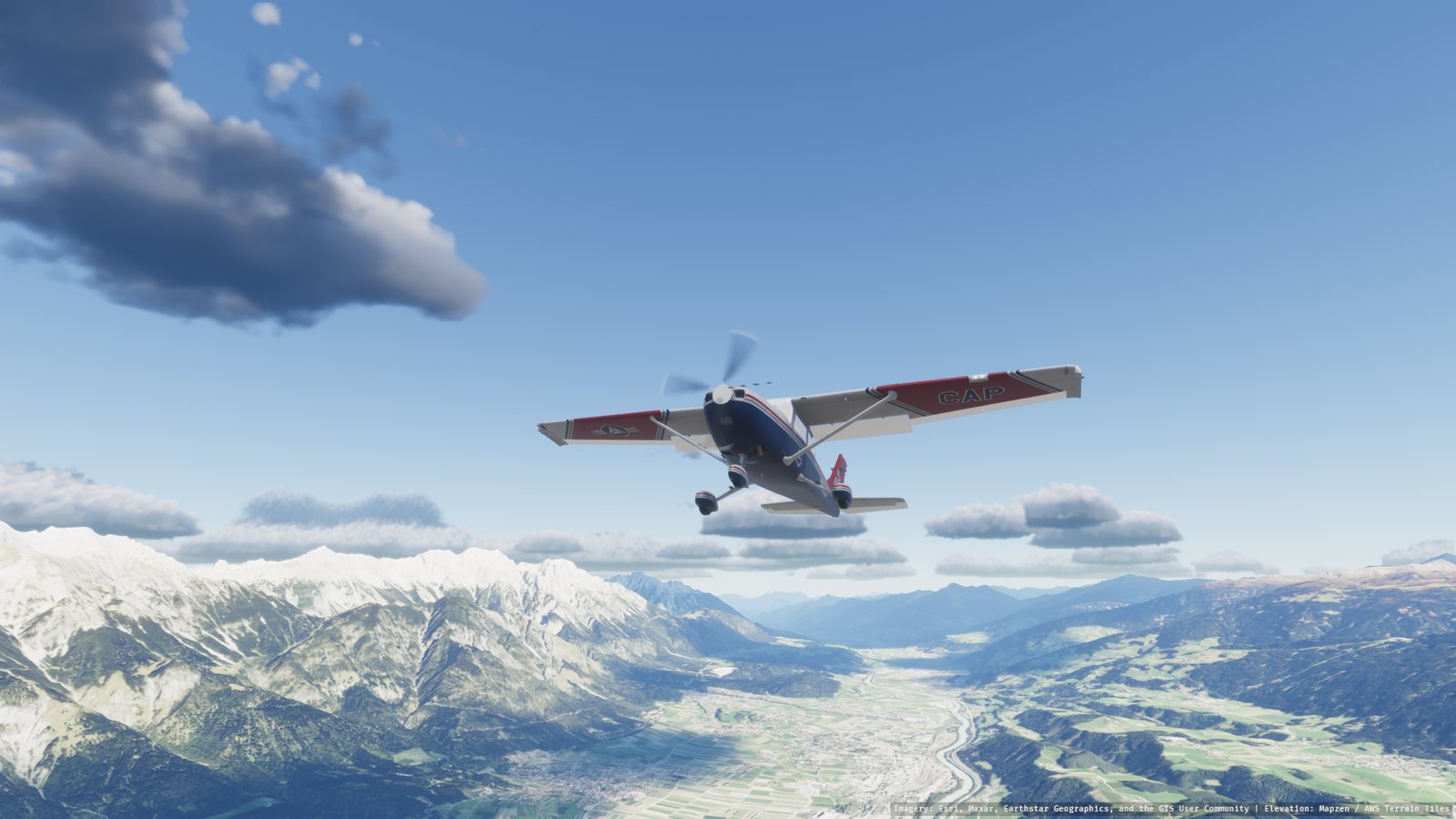
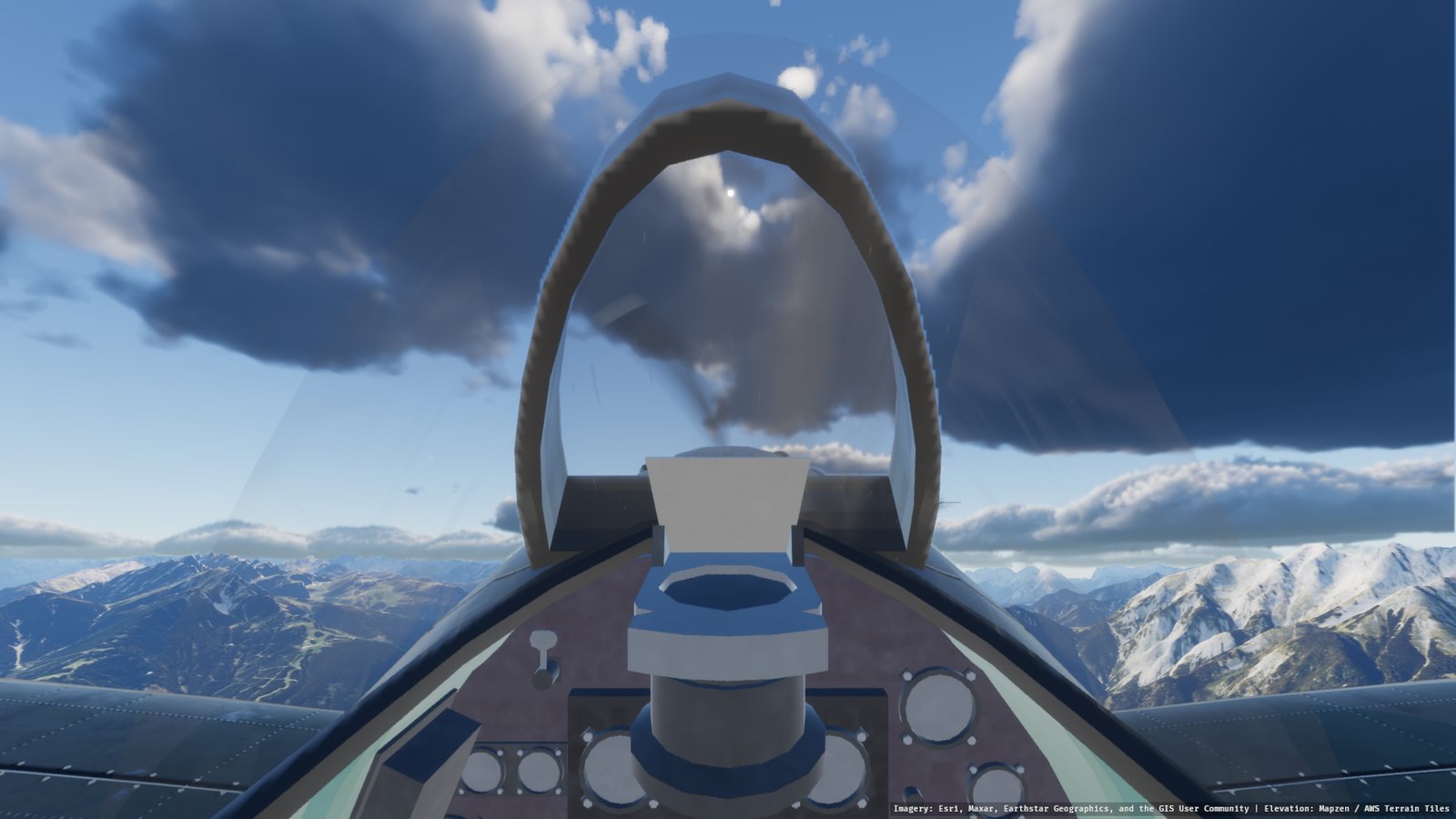
Elevation and satellite imagery are streamed and cached as you fly. A list of famous places is one click away.
Ray-marched cumulus, from a few clouds to overcast, lit by the atmosphere. They drift with the wind and cast shadows on the ground.
Sun position from the time of day, physically based atmosphere, sunsets, and exposure that adapts like an eye or a camera.
Eye, action cam, phone or film camera: lens, grain, rolling-shutter propeller, dirty windscreen glare, colour looks.
Sticks, yokes, throttles and rudder pedals, bound by moving the control. Gamepads work too.
The cockpit in a Meta Quest or other PC VR headset, through OpenXR. Display only; you fly with your usual controls.
Unzip and run gflight.exe from its folder. You need a GPU with Vulkan or DirectX 12 and an internet connection for the terrain.
Unzip and run ./gflight from its folder. You need Vulkan drivers (Mesa or NVIDIA) and an internet connection for the terrain.
On laptops and integrated graphics, open the settings with Tab and set Graphics > Quality to Low or Medium.
On Windows, connect the headset with Quest Link (cable or Air Link) and set it as the active OpenXR runtime in the Meta Quest Link app. SteamVR and Virtual Desktop also work. Then start gflight with VR switched on:
set GFLIGHT_VR=1
gflight.exe
On Linux, run a WiVRn or ALVR server and start GFLIGHT_VR=1 ./gflight. Sit normally and recentre the view once you're in the cockpit.
VR support is new and hasn't been tried with a headset yet. Without a headset runtime, gflight simply opens its window.